To add teams to the Pixellot CMS you will need to:
Log in to the CMS at https://club.pixellot.tv/ using your login credentials.
Click on the “Teams” tab in the left-hand menu.
Click the plus (+) icon in the bottom-right corner of the screen.
This will open the Create new team page, where you can fill in the details for your new team.
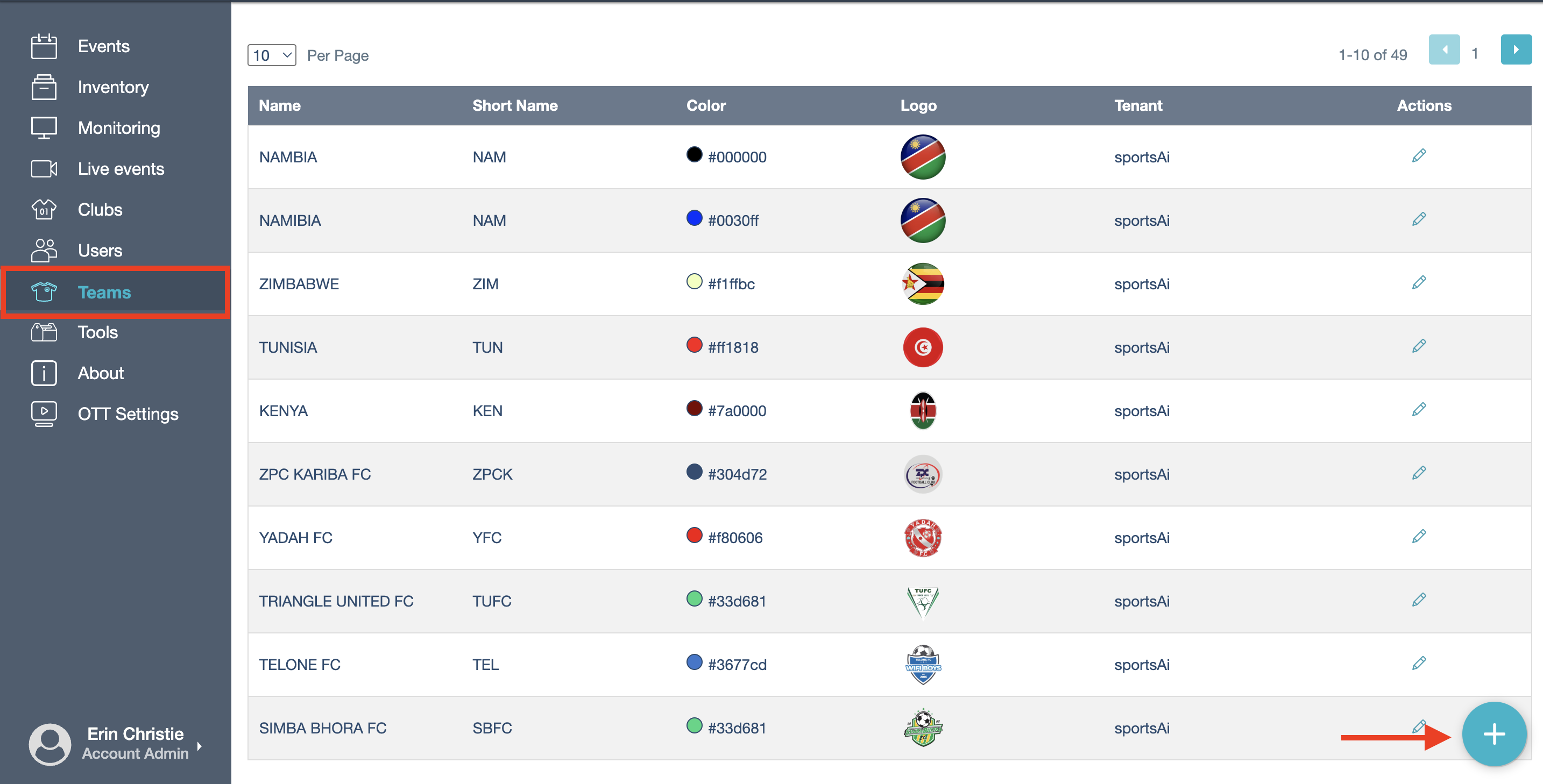
Name
The full name of your team.
Short Name
A shortened version of your team’s name.
The Name and Short Name will appear on the Advance GFX scoreboard once activated. These can also be edited later directly on the scoreboard.
Gender
The gender of your team. (It is generally recommended to leave this field blank.)
If filled in, the selected gender will:
- Appear during event creation when this team is chosen.
- Display as a small icon at the bottom of the live stream on your app/OTT platform.
- Require you to create two separate teams per club/school if the organization is co-ed (e.g., one for boys and one for girls).
Tenant
The name of your tenant on the Pixellot CMS.
Leave out the VidSwap League, VidSwap Team and Categories fields.
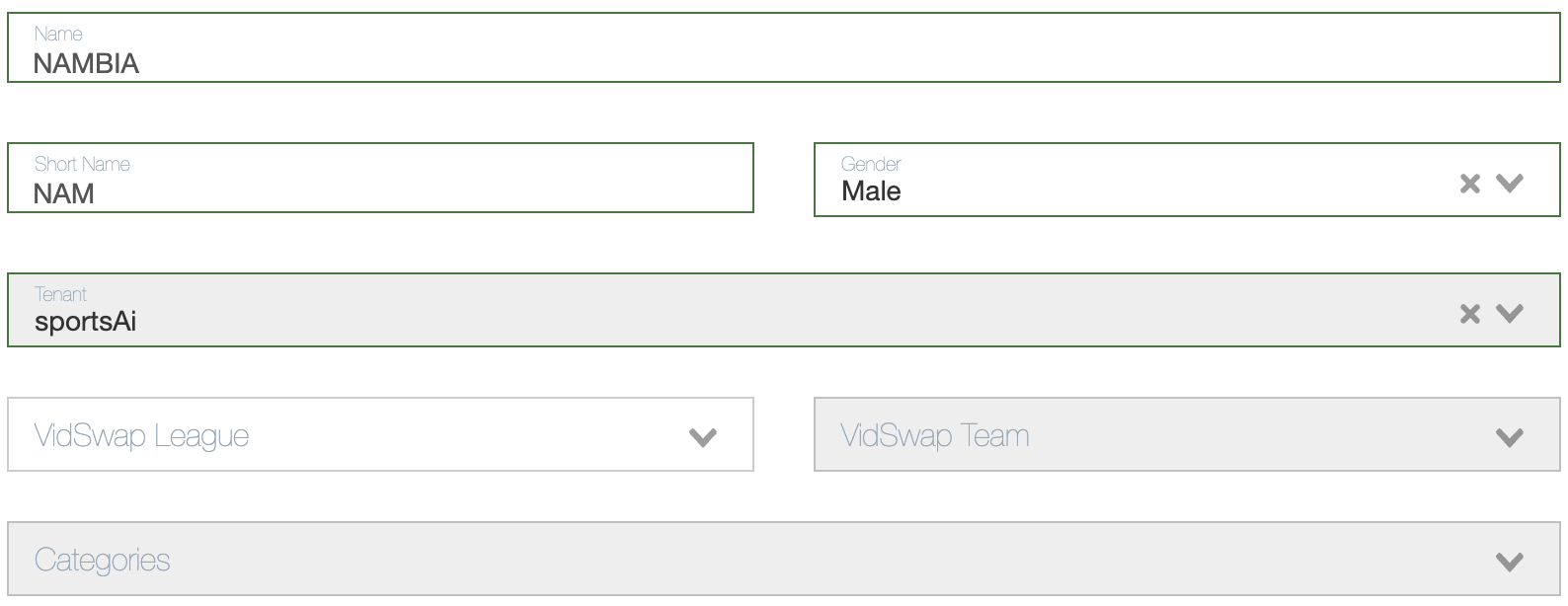
You can add the Social Media Links for your team if you would like.
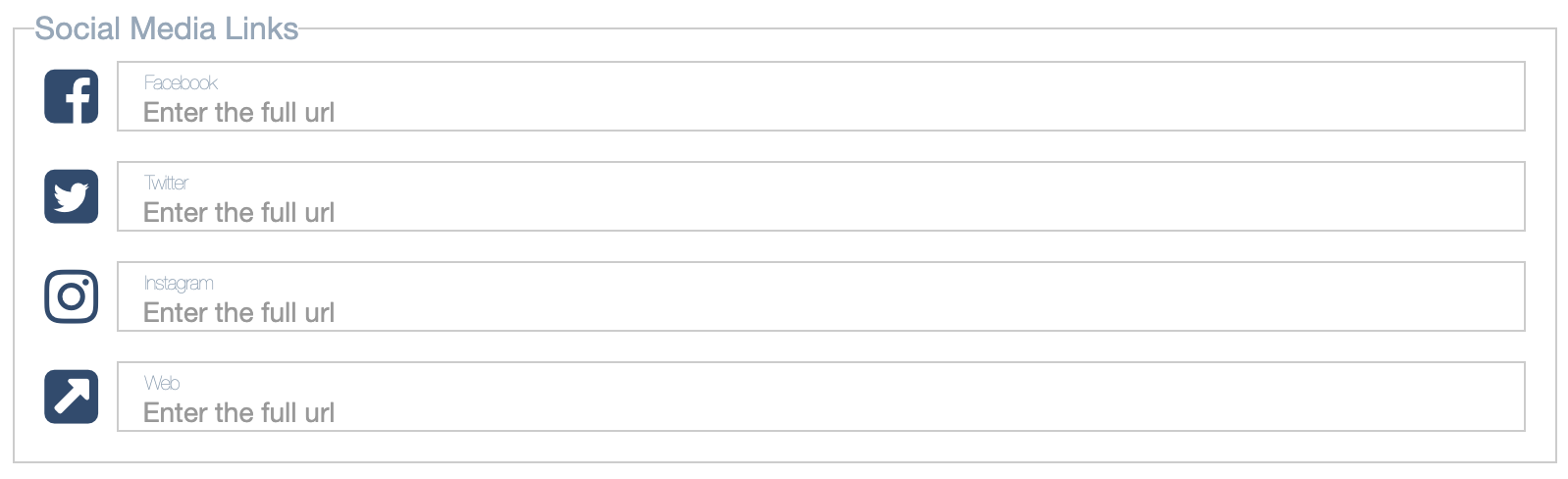
You can select the Sport Type for your team but is is advisable to leave it blank else the team will only be able to be selected when the specific sport type is chose during event creation.
If a Sport Type is selected, you’ll have the option to upload the Team Roster.
The roster can be uploaded at this stage (team level) or later during event creation (event level), depending on your preference. For detailed instructions, see the separate article: Adding Team Rosters.
Select your team Colour
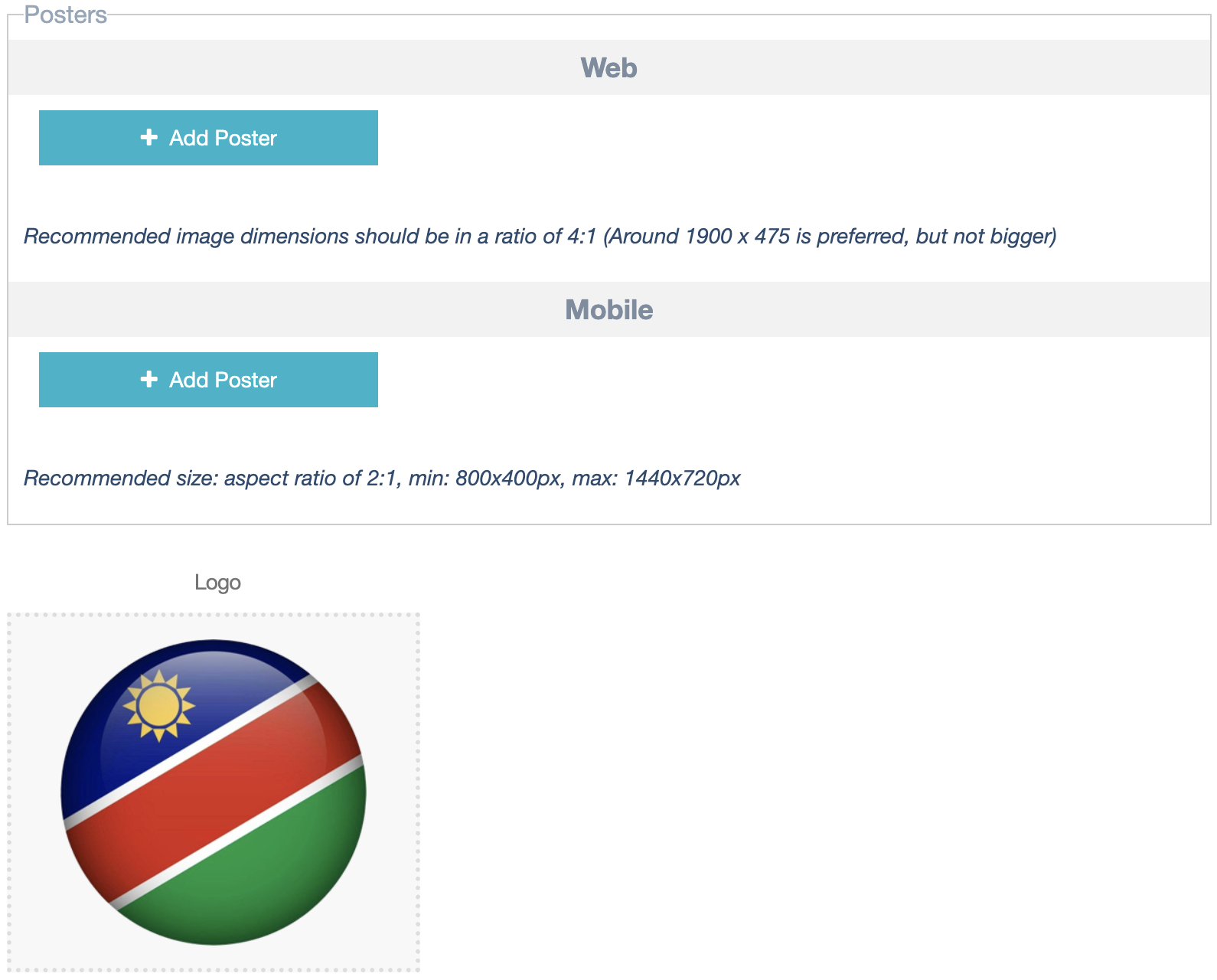
Leave out the Posters section.
Select or drag a team Logo to the space provided. This Logo will pull through to the Advance GFX or manual scoreboard.
Click Save to save your team.
Note: Once a team is created, it cannot be deleted. However, it can be edited or archived by selecting the “Archived” checkbox next to the Colour field.
Was this article helpful?
That’s Great!
Thank you for your feedback
Sorry! We couldn't be helpful
Thank you for your feedback
Feedback sent
We appreciate your effort and will try to fix the article